
Search
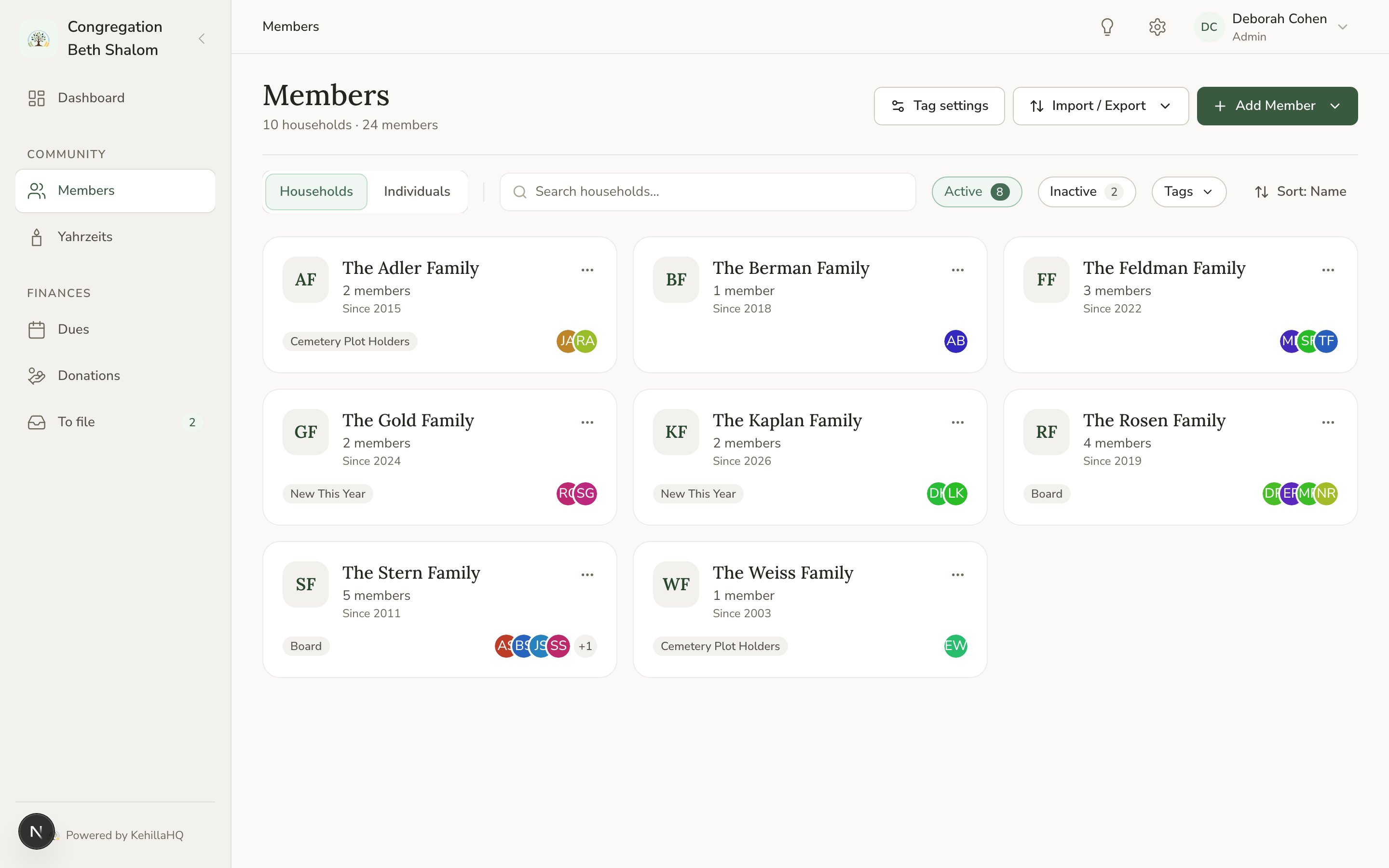
The search box matches names. Type a few letters of a first or last name and the list narrows as you go.Filters
Filter controls sit in the toolbar. Open one and tick the values you want. Filters apply the moment you tick them, so there is no Apply button to hunt for. You can combine filters. Tag Board plus status Active gives you active members of board households. Each filter shows a count next to each option, so you can see how many records match before you commit to the filter.The applied filter row
Everything currently narrowing your list appears as a row of chips below the page heading, each labelled with which filter it came from, for example “Tag: Board”. Remove one by dismissing its chip, or use Clear all.Clear all restores the page’s normal defaults rather than showing absolutely everything. Since deceased members are hidden by default, clearing filters returns you to a list without them. To see deceased members, turn that filter on deliberately.
Why deceased members are hidden by default
Most daily work is about living members, and a list that mixes them is uncomfortable to use and easy to make mistakes with. So they are folded away until you ask. When you do need them, and you will when working with yahrzeits, turn the filter on. They come back into the list clearly marked. Archived members are grouped with Inactive in the filters. There is no separate Archived option.Households or individuals
The view control switches between households and individuals. Filters carry across, so you can filter to a tag and flip between “which families” and “which people”.Your filters stay in the address
The filters you pick are written into the page address. Two useful consequences:- Bookmark a filtered view you use often, for example active members with no email address, and it opens filtered every time.
- Share a link with a colleague and they see the same filtered list, as long as their role permits it.