
Who can do this
Admin and Financial Admin can connect Stripe, turn the giving page on and off, and copy links. Board Member can see whether Stripe is connected but cannot change it. Stripe itself asks that the person completing its setup have real responsibility for the congregation, such as a treasurer, president, or executive director. Have that person do the connecting.What to gather before you start
If your congregation is new to Stripe, plan for ten to fifteen minutes and collect these first so you can finish in one sitting. About your congregation- Its legal name, exactly as it appears on IRS records
- Its EIN
- Mailing address, phone number, and website (a sentence describing the congregation works if there is no website)
- Legal name, date of birth, and home address
- Social Security number, often just the last four digits
- Occasionally a photo of a government ID, if Stripe cannot verify automatically
- The routing and account numbers for the account where payouts should land. A voided check or your online banking shows both.
Connecting, step by step
1
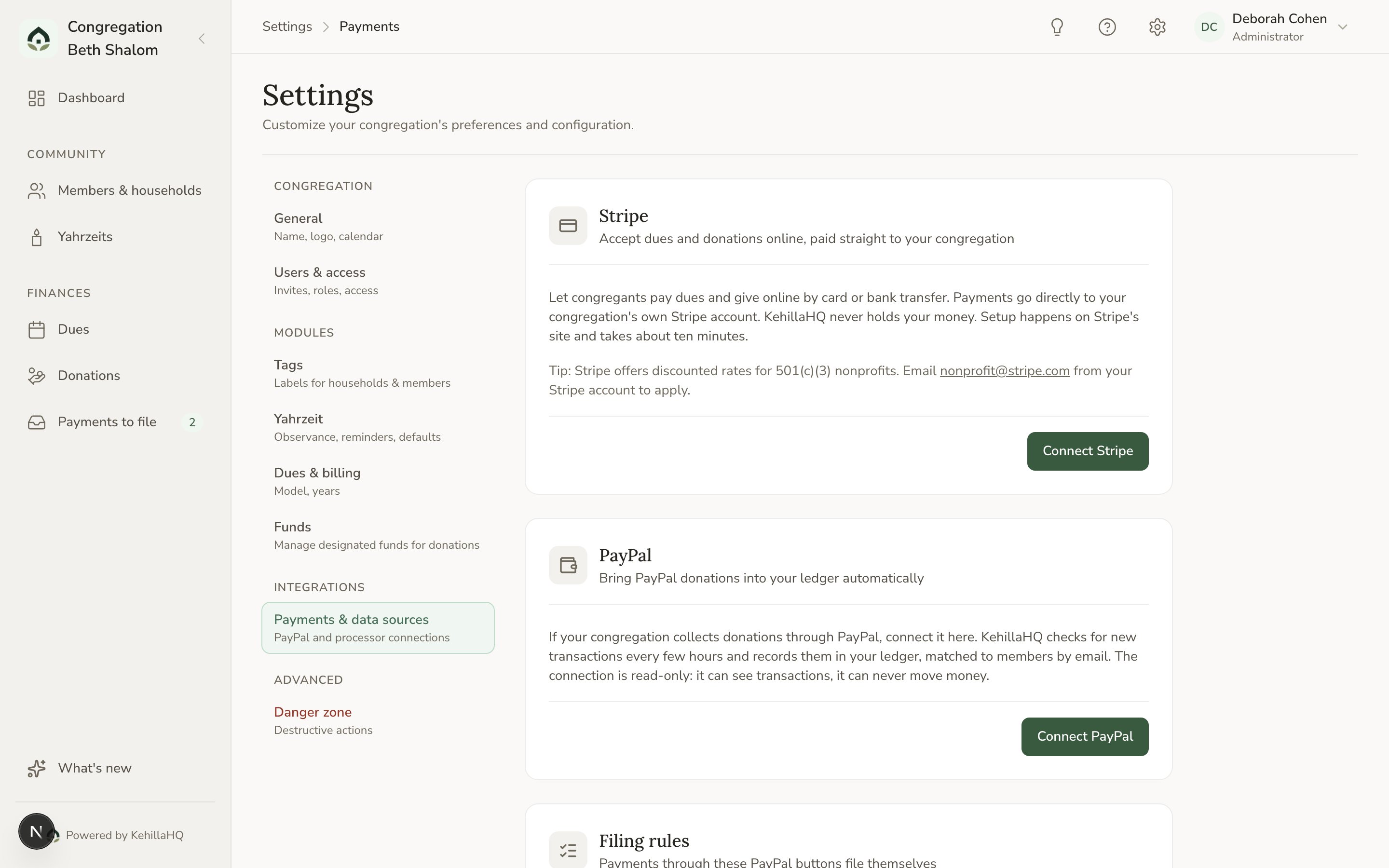
Click Connect Stripe
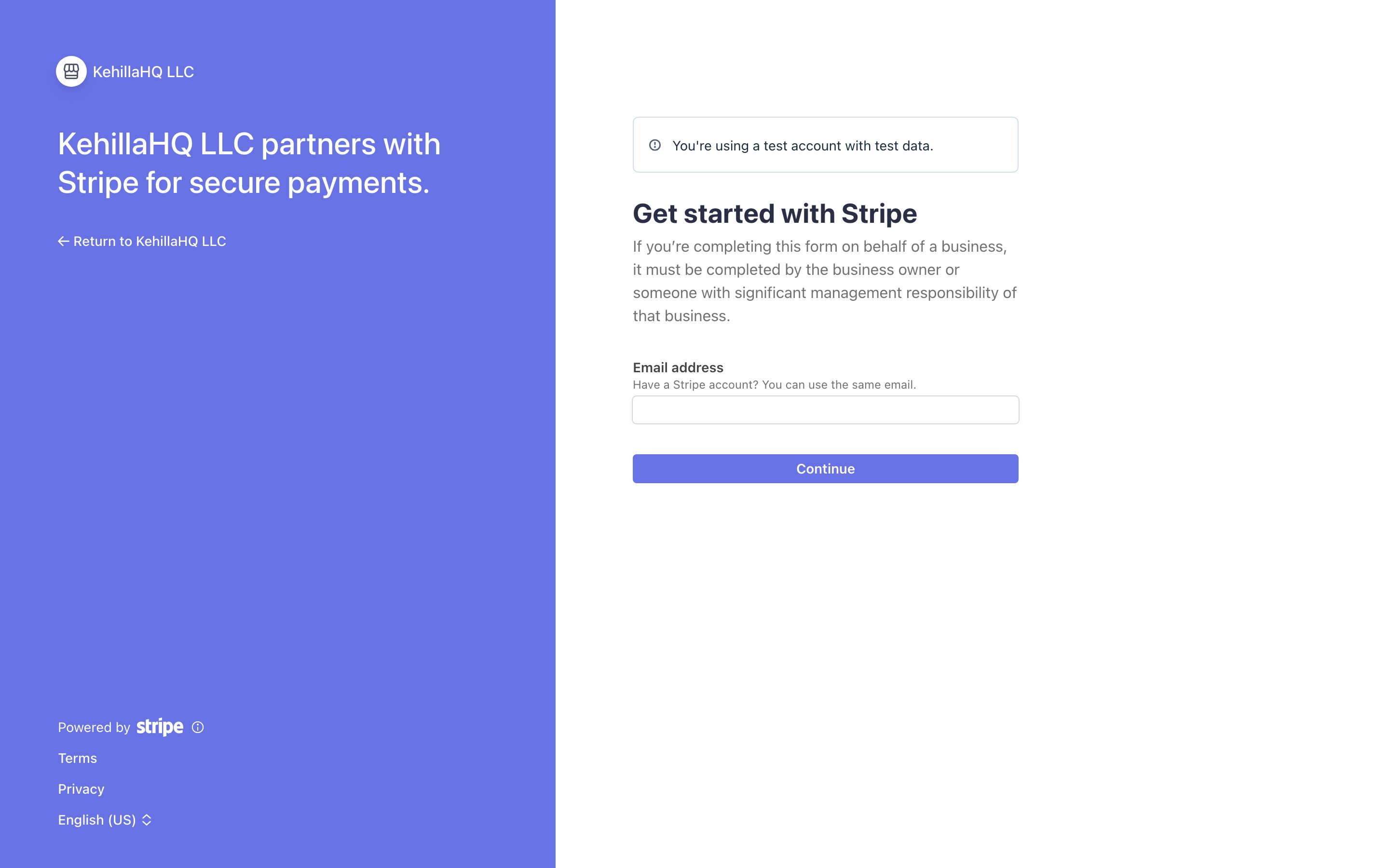
On the Stripe card, click Connect Stripe. You are taken to Stripe’s own secure setup site. The address begins with connect.stripe.com and the page says it is partnering with KehillaHQ.
2
Choose the email for your congregation's Stripe account
A role address such as treasurer@yourcongregation.org is better than a personal one, so access survives board turnover. If your congregation already uses Stripe, use that account’s email and sign in.
3
Follow Stripe's prompts
Stripe asks for the congregation details, the personal verification, and the bank information from the checklist above. Nothing you type here is sent to KehillaHQ.
4
Return to KehillaHQ
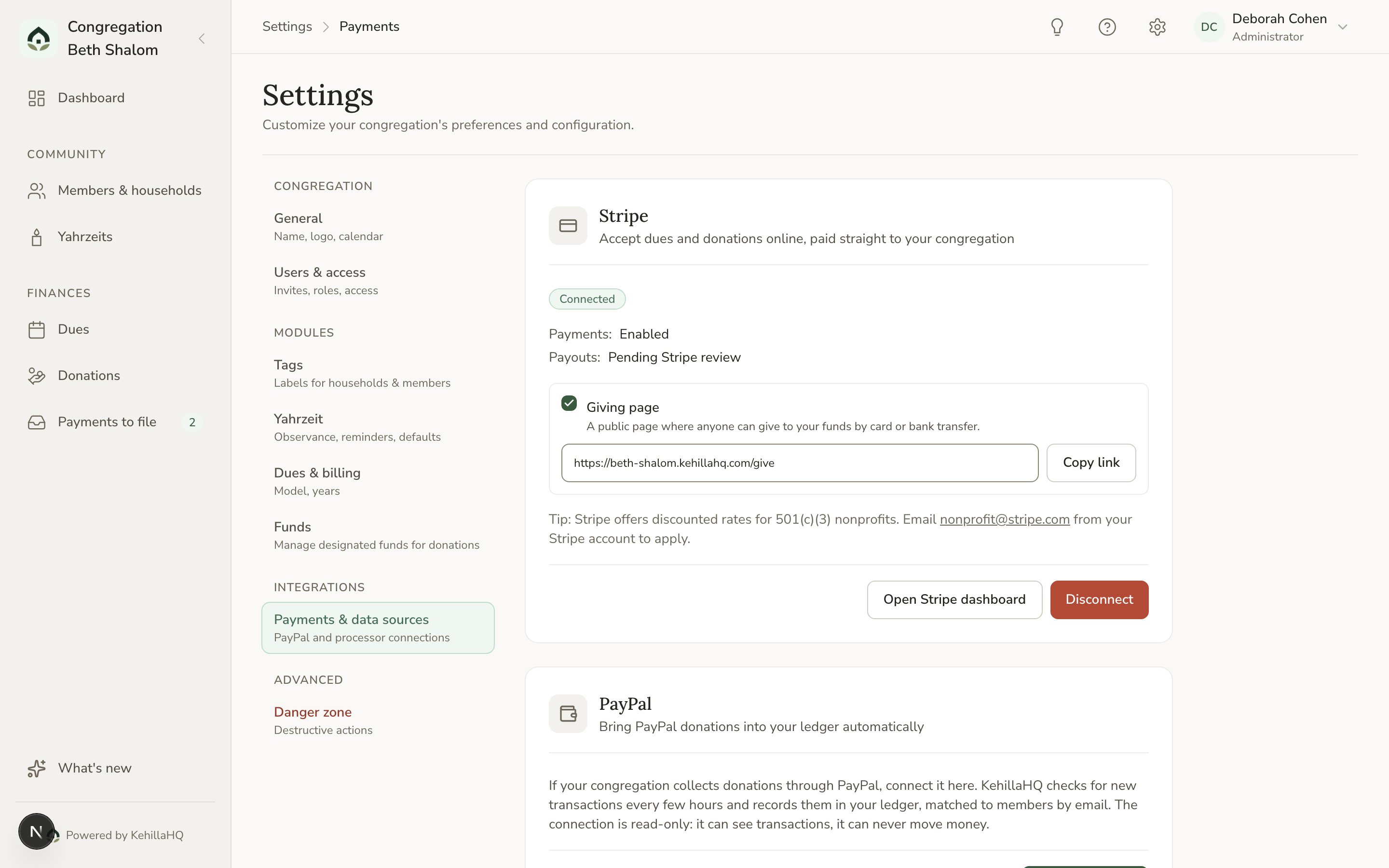
When Stripe is done it sends you back. The Stripe card now shows Connected. Payouts may read Pending Stripe review for a day or two while Stripe checks your bank account; payments work in the meantime.
Turn on your giving page
Connecting Stripe does not, by itself, put anything in front of your members. Once the card shows Connected, a Giving page tick box appears on it.1
Set up your funds first
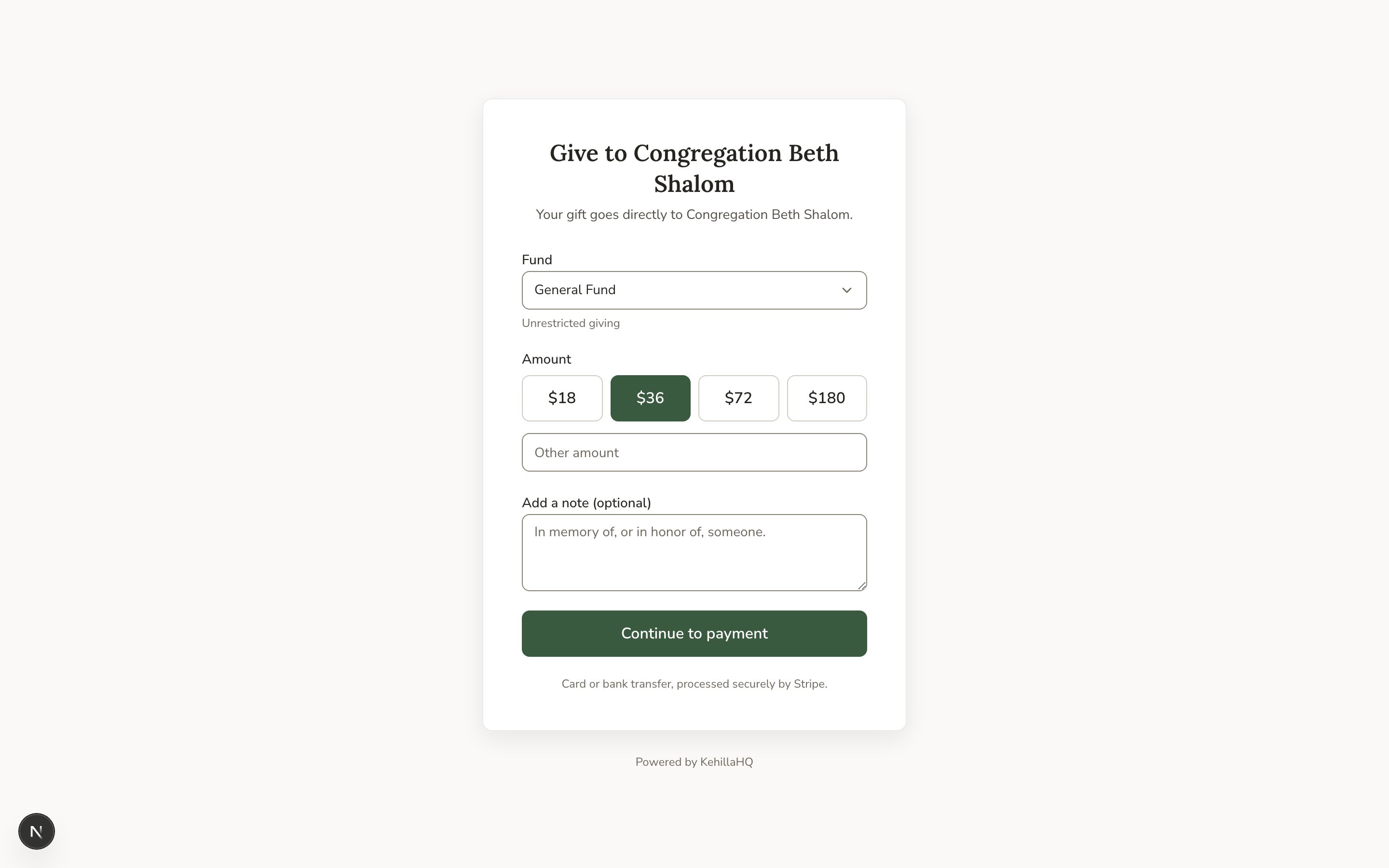
The giving page lets a member choose which fund their gift supports, and the list comes straight from your Funds page. Make sure the funds you want to offer exist and are active, and that one is marked as the default. See Funds.
2
Turn the giving page on
Tick Giving page on the Stripe card. Your congregation’s giving link appears beside it with a Copy link button.
3
Share the link
Put it in your newsletter, on your website, in an email signature. Anyone with the link can give. No sign-in is needed.
Personal dues payment links
Every household with a dues commitment can be sent its own private payment link. Open the household from the Dues page (or its Statement tab on the household profile) and click Copy dues link. Paste it into an email. When the household opens it, the page greets them by name, shows their open balance for the year, and fills in that amount. They can pay all of it, part of it, or more. Whatever they pay is applied to their commitment automatically, and their dues status updates on its own. A dues link works through the end of that dues year plus a month of grace, then expires. If someone opens an expired link, they see a gentle note and can still give to a fund. The button only appears once the giving page is on, since a link needs somewhere to go.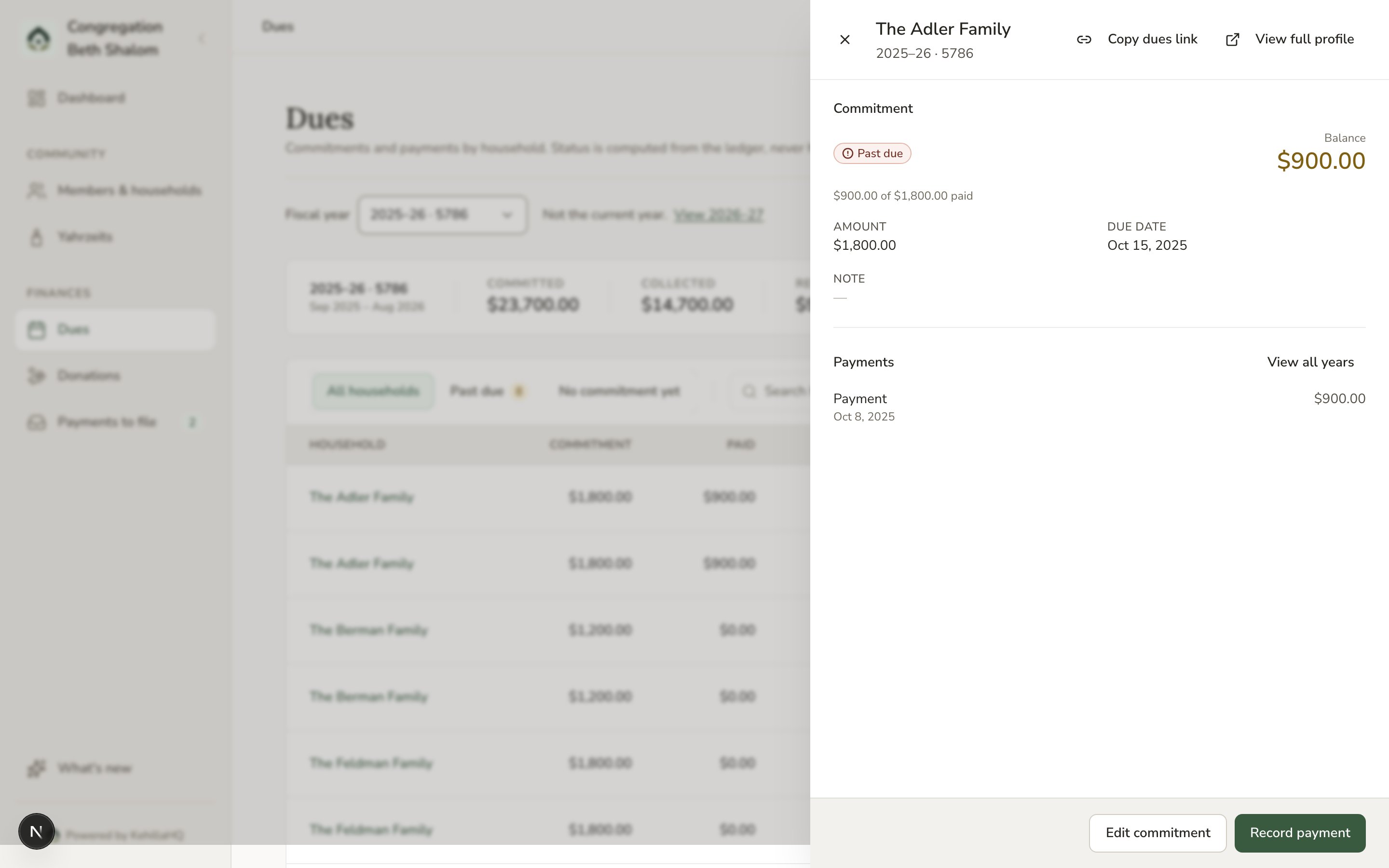
Where online payments show up
- Gifts to a fund appear in Donations with a Stripe badge and the card or bank transfer method, filed to the fund the member chose. If the member wrote a note, it is on the entry.
- Dues payments made through a personal link are applied to that household’s commitment straight away. You will see them on the household’s statement and in the ledger, no filing needed.
- Payments that arrive without a fund, which can happen if your congregation also creates its own payment links inside Stripe, land in The To file inbox for a person to file, exactly as PayPal payments do.
Members do not receive a receipt from KehillaHQ. Stripe can email receipts for you. In your Stripe dashboard, turn on emails to customers for successful payments, under the customer emails settings. It is worth doing on day one.
After you’re connected
- Apply for Stripe’s nonprofit discount. Stripe offers lower processing rates to 501(c)(3) organizations. Email nonprofit@stripe.com from the address on your Stripe account, with your determination letter to hand. Each congregation applies on its own account, and it is worth doing straight away.
- Expect the first payout to take a few days. Stripe holds a new account’s first payout a little longer while it verifies the bank account. After that, payouts arrive on a rolling schedule you can see in your Stripe dashboard.
- Turn on receipt emails in Stripe, as above.