> ## Documentation Index
> Fetch the complete documentation index at: https://docs.kehillahq.com/llms.txt
> Use this file to discover all available pages before exploring further.
# Finding your way around
> The sidebar, the top bar, and how to get back to where you were.
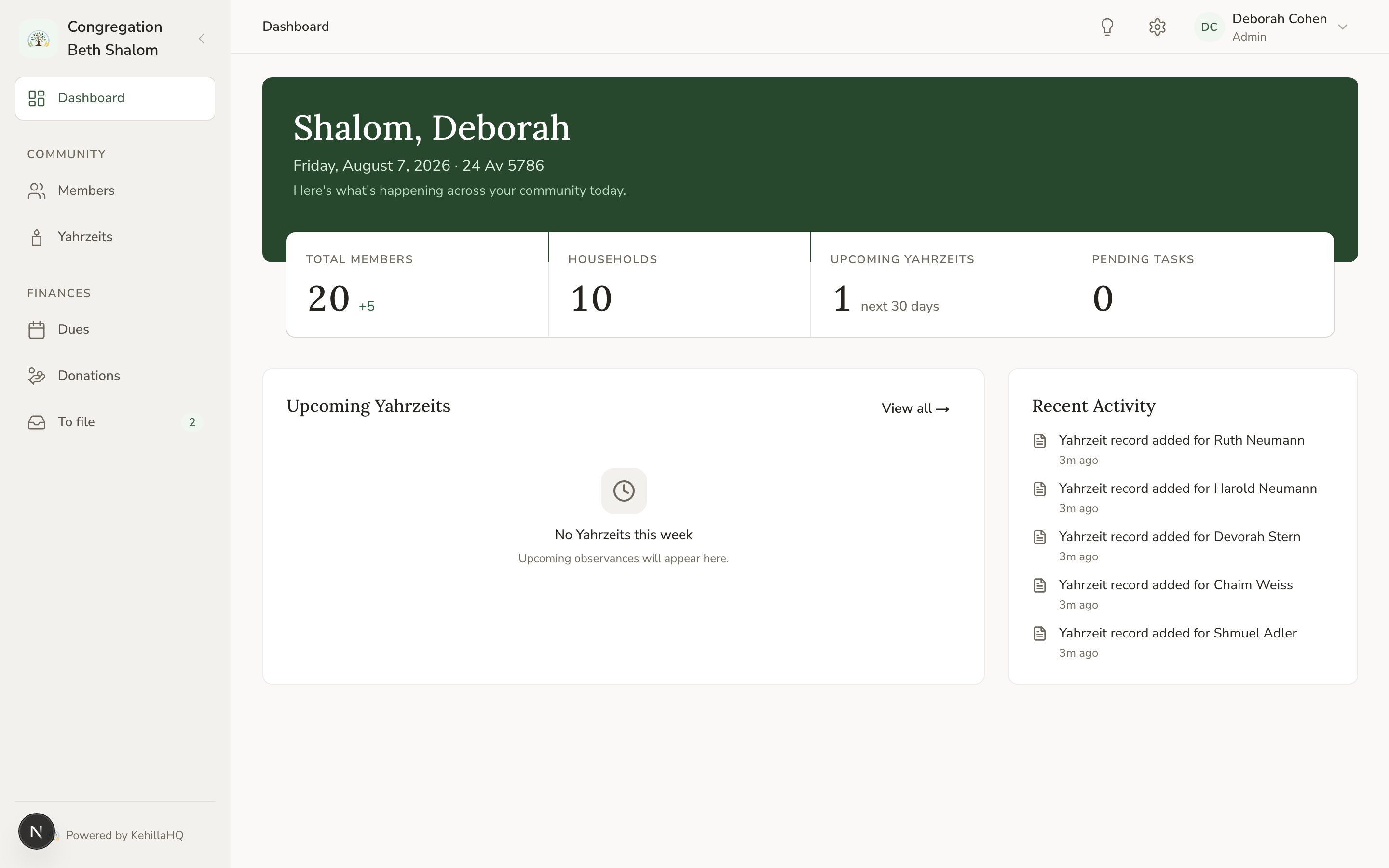
The screen has two navigation areas, and they do different jobs. The sidebar on the left takes you between the main parts of the system. The bar across the top handles everything about you, your congregation's settings, and where you currently are.
 ## The sidebar: where the work happens
**Dashboard** is your starting view: a summary of the congregation at a glance.
**Community**
* **Members** is your directory of households and people.
* **Yahrzeits** is every observance you track, with its reminder status.
**Finances**
* **Dues** is what each household has committed for the year, and what has come in.
* **Donations** is the full contributions ledger.
* **To file** holds payments that arrived without enough information to record them yet. When something is waiting, a number appears next to it.
If you do not see the Finances section at all, your role does not include access to financial information. That is a deliberate setting, not a fault. See [Roles and permissions](/get-started/roles).
You can collapse the sidebar to just its icons using the control in its top corner. Your choice is remembered the next time you sign in.
## The top bar: where you are, and who you are
**The trail on the left** shows your current location, for example Members, then the household, then the person. Each earlier step is a link back.
**Send feedback** opens a short form. It is the fastest way to tell us something is wrong or missing, and it quietly includes which browser and device you are on so we do not have to ask.
**Settings** opens your congregation's settings hub.
**Your account menu**, on the far right, holds your own profile, the Users page for managing who has access, and sign out.
## On a phone or tablet
The sidebar is hidden behind the menu button at the top left. Tap it to slide the navigation out, then tap any item to go there and close it. Everything in the top bar stays where it is.
## A tip worth knowing
Settings is deliberately in one place. When a module has its own settings, such as Yahrzeits or Dues, the link on that page takes you to the same settings hub rather than to a separate copy. There is only ever one place a given setting is defined, so you never have to wonder which version won.
## The sidebar: where the work happens
**Dashboard** is your starting view: a summary of the congregation at a glance.
**Community**
* **Members** is your directory of households and people.
* **Yahrzeits** is every observance you track, with its reminder status.
**Finances**
* **Dues** is what each household has committed for the year, and what has come in.
* **Donations** is the full contributions ledger.
* **To file** holds payments that arrived without enough information to record them yet. When something is waiting, a number appears next to it.
If you do not see the Finances section at all, your role does not include access to financial information. That is a deliberate setting, not a fault. See [Roles and permissions](/get-started/roles).
You can collapse the sidebar to just its icons using the control in its top corner. Your choice is remembered the next time you sign in.
## The top bar: where you are, and who you are
**The trail on the left** shows your current location, for example Members, then the household, then the person. Each earlier step is a link back.
**Send feedback** opens a short form. It is the fastest way to tell us something is wrong or missing, and it quietly includes which browser and device you are on so we do not have to ask.
**Settings** opens your congregation's settings hub.
**Your account menu**, on the far right, holds your own profile, the Users page for managing who has access, and sign out.
## On a phone or tablet
The sidebar is hidden behind the menu button at the top left. Tap it to slide the navigation out, then tap any item to go there and close it. Everything in the top bar stays where it is.
## A tip worth knowing
Settings is deliberately in one place. When a module has its own settings, such as Yahrzeits or Dues, the link on that page takes you to the same settings hub rather than to a separate copy. There is only ever one place a given setting is defined, so you never have to wonder which version won.