> ## Documentation Index
> Fetch the complete documentation index at: https://docs.kehillahq.com/llms.txt
> Use this file to discover all available pages before exploring further.
# Connecting PayPal
> Bring your PayPal payments in automatically instead of entering them by hand.
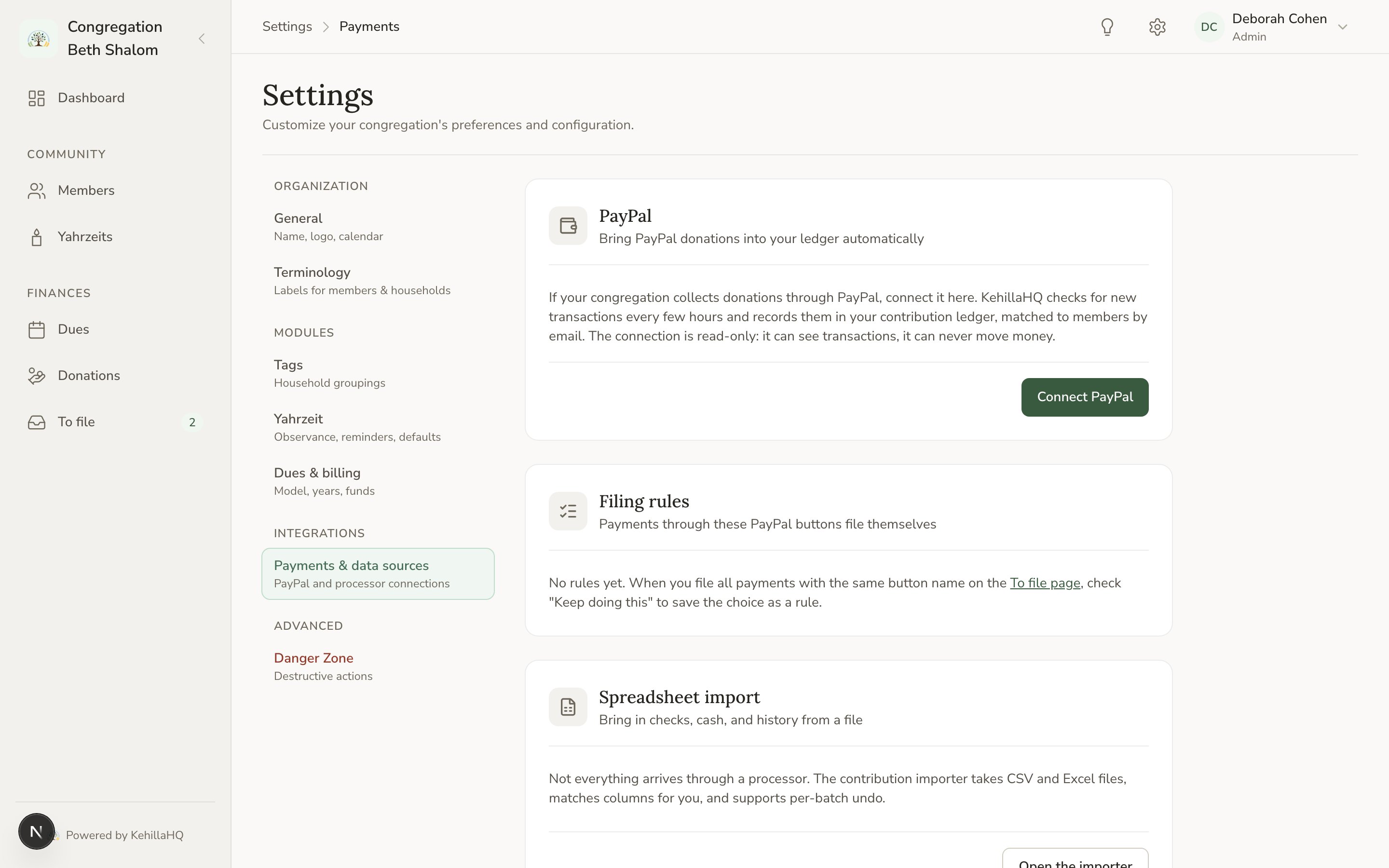
If your congregation takes payments through PayPal, you can connect it so those payments arrive in KehillaHQ on their own. No more copying figures across from a PayPal report every month.
Go to **Settings**, then **Payments and data sources**.
## Who can do this
**Admin** and **Financial Admin**. Your treasurer can set up their own connection without needing an administrator to do it for them.
**Board Member** can see whether the connection is healthy, but cannot read or change any of its details.
## What you will need
Credentials from your congregation's PayPal business account. These come from PayPal's own developer settings, and getting them usually means asking whoever administers your PayPal account.
Use your congregation's PayPal account, not a personal one. Untangling a treasurer's personal PayPal from congregational records later is genuinely unpleasant.
## How your credentials are held
They are encrypted before they are stored, and they are never shown again. Not to you, not to anyone else at your congregation, not in any export or error message.
That means if you need to change them, you enter them fresh rather than editing what is there. This is the correct trade-off: credentials that can be read back can be leaked.
## Once connected
Payments are collected automatically, several times a day. You do not press anything.
Each payment arrives in the **To file** inbox, because PayPal can tell you that money came in but not whether it was dues or a building fund gift. You say what it was for, and it joins your ledger.
If a payer's email address matches someone in your records, the donor is filled in for you. See [The To file inbox](/finances/to-file).
 ## Filing rules save the repetitive part
If you have separate PayPal buttons for separate purposes, file the first payment from each one and save your choice as a rule. Everything through that button files itself afterwards.
For most congregations this turns an ongoing weekly job into a few minutes of setup.
## Watch for double-counting
The most common problem after connecting is the same gift recorded twice: once by hand when the treasurer saw it in PayPal, once automatically.
Two habits prevent it:
* **Stop entering PayPal payments by hand** once the connection is live. Let them arrive.
* **Use ignore for genuine duplicates** already in the inbox, rather than deleting them. Ignoring keeps them from coming back on the next sync.
## Disconnecting
You can disconnect at any time. New payments stop arriving. Everything already recorded stays exactly where it is, and your history is not affected.
Disconnect when your congregation changes PayPal accounts, or when you stop using PayPal.
## If the connection stops working
The settings page shows whether the connection is healthy. If it is not, the usual causes are credentials that were changed or revoked in PayPal, or a PayPal account whose permissions changed.
Reconnect with fresh credentials. If it still fails, contact [support@kehillahq.com](mailto:support@kehillahq.com).
Payments that arrived while a connection was broken are not lost. Once it is working again, the sync picks up what it missed.
## Filing rules save the repetitive part
If you have separate PayPal buttons for separate purposes, file the first payment from each one and save your choice as a rule. Everything through that button files itself afterwards.
For most congregations this turns an ongoing weekly job into a few minutes of setup.
## Watch for double-counting
The most common problem after connecting is the same gift recorded twice: once by hand when the treasurer saw it in PayPal, once automatically.
Two habits prevent it:
* **Stop entering PayPal payments by hand** once the connection is live. Let them arrive.
* **Use ignore for genuine duplicates** already in the inbox, rather than deleting them. Ignoring keeps them from coming back on the next sync.
## Disconnecting
You can disconnect at any time. New payments stop arriving. Everything already recorded stays exactly where it is, and your history is not affected.
Disconnect when your congregation changes PayPal accounts, or when you stop using PayPal.
## If the connection stops working
The settings page shows whether the connection is healthy. If it is not, the usual causes are credentials that were changed or revoked in PayPal, or a PayPal account whose permissions changed.
Reconnect with fresh credentials. If it still fails, contact [support@kehillahq.com](mailto:support@kehillahq.com).
Payments that arrived while a connection was broken are not lost. Once it is working again, the sync picks up what it missed.